Friday, April 17, 2015

Mobile phone as remote control for android tv box vigica c60 and c70


Mobile phone as a remote control for android tv box vigica c60 and c70

Firslty, please download the applicaiton from the website,
https://drive.google.com/folderview?id=0B_AK94MdnE7wZFl3QTJGUUxJZmc&usp=sharing

Then install the application on your mobile.


Open the SettingMbox in your tv box, connect your wifi, and also make your mobile phone in the same wifi connecting.


Open the advanced icon on menu, then make the Remote control Icon ON. It will show a IP address. Like following 192.168.0.20


Open your mobile phone---choose the application, searching the server, can find the tv box address, connected,


The mobile will show a picture, like remote control, your mobile phone can be as a remote control to operate your tv box.


We can watch tv, video, surfing on line, also can modify the volume.


The mobile also can be as a mouse and keyboard, you can free switch by yourself.


It is very easy. Come on, take out your mobile phone and tv box.


More details, please visit 
www.vigica.cc

Wednesday, April 15, 2015

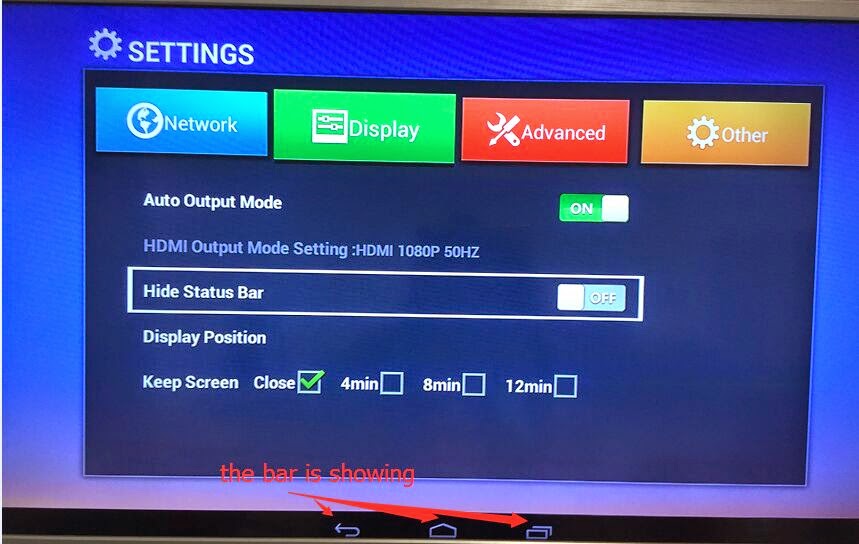
How to hide “home””back” bar on the bottom when you watching tv?


In this situation, the button on the bottom, It covers a part of the screen. It is very easy to make disappear for these button. 

Please go to application in the box 


Choose Settings Mbox, this status is off, you can see the bar on the bottom now.


Please make “Hide Status Bar” ON. The bar will disappear


Then you can back to check the status for the TV channel, like as following


Now the screen dont have that icon now, please try to do that now.
If you have the same questions for Vigica C60S, Vigica C60T, Vigica C70S, Vigica C70T, Vigica C70A,Vigica C90S and Vigica C90T, please try this method.

Tuesday, April 14, 2015

backup and restore user data for quad core android with dvb-s2 box vigica c90s

Dear all customer,


Today let’s learn how to backup and restore channel data for vigica c90s.
Firstly connect your box with tv and antenna.
1. download the channels all you want


2. Enter installation, insert a USB to the box


3. choose backup the data


4.take another vigica box(just only be Vigica C90S),also enter installation, insert USB, choose restore the data.

5. the channels will copy to other box.


The Data have been entered the second box success. Just only connect with antenna, you can watch same channels like first box.


If you want more box with same channels with the first box, do the same operation.

Android tv box can give you more entertaiment for live channels.

if you want to get this android with DVB-S2 box, please visit www.vigica.cc

thanks for your support.

Monday, April 13, 2015

Unboxing Vigica C90T smart tv box by China Gadgets reviews

VIDEO & PHOTO GALLERY: UNBOXING VIGICA C90T SMART TV BOX by China Gadgets reviews


Vigica Company just send me this week a new and powerful Android TV Box: Vigica C90T. Today I'll show you photos and a video from the unboxing of this great model.

The TV box has a black plastic case, it is strong and well organized and all the connectorsare located in the back of it. The overall impression is pretty nice, the device looks to beconstructed with a lot of care to details. In the front side it has only the IR receiver and the panel for guiding ligths.

The cardboard gift packaging looks like is made of recycled paper, which is a big plus for Vigica, showing the company's care for the environment.


Vigica C90T was launched recently and is based on Amlogic S805 Quad core processor. It has 1GB of RAM, 8GB of ROM and it runs Android KitKat 4.4.2. The Android Smart TV Box has inside also a powerfull DVB-T2 tuner.


VIGICA C90T Highlights
CPU: Amlogic S805 Quad Core Cortex-A5 Up to 1.5GHz
GPU: Quad Core Mali-450 Up to 400MHz
RAM Memory: 1GB DDRIII

Flash: Nand Flash 8GB
WiFi: AP6210 802.11 b/g/n
Blutooth: Support
IR: Infra-red Remote control
Mould: Black
LED Indicator: Power ON: blue; Standby: Red
Wall mount


Ports
1 x Antenna In
1 x Antenna Out
2 x USB 2.0
1 x SPDIF Audio Output
1 x HDMI 1.4b output
1 x A/V Out
1 x MicroSD Card Slot
1 x Ethernet LAN RJ45
1 x Power input 12V / 1.5A
1 x LED Indicator


Package Content
1 x Vigica C90T Smart TV Box
1 x Power Adapter
1 x HDMI Cable
1 x IR remote
1 x English User Manual

I'll be back soon these days with the first impression story, so stay close.


About Vigica

Shenzhen Vigica Technology Co., Ltd. is a professional multimedia video products manufacturer. Vigica will become a modern enterprise group.Our main products is Android TV Box, Android with DVB-S2/T2/ATSC/ISDB, Android Mini PC, fly mouse, ipush dongle, wireless category products.Red represents vitality, orange for creativity, blue for scientific and technological strength, meaning we exchange-good company is committed to developing excellence, efficient, capable people, limitless energy, adhering to the scientific concept of the infinite, and times, the courage to innovate understanding and use of new technology production and marketing of quality products, satisfy the stability of the customer purchased the product, price and service satisfaction of dominance.


original link:
http://chinagadgetsreviews.blogspot.ro/2015/04/video-photo-gallery-unboxing-vigica.html

Sunday, April 12, 2015

How to run Arabic iptv program on Vigica tv box?

Recently, hot promotion arabic iptv chanels for vigica tv box. Vigica C60S, Vigica C60T, Vigica C70S, Vigica C70T, Vigica V5,Vigica V3 all models can run arabic iptv programs. 


Detail pictures for you

Application menu, choose IPTV


 three options----Live(about 112 chanels), Movie, Webtv


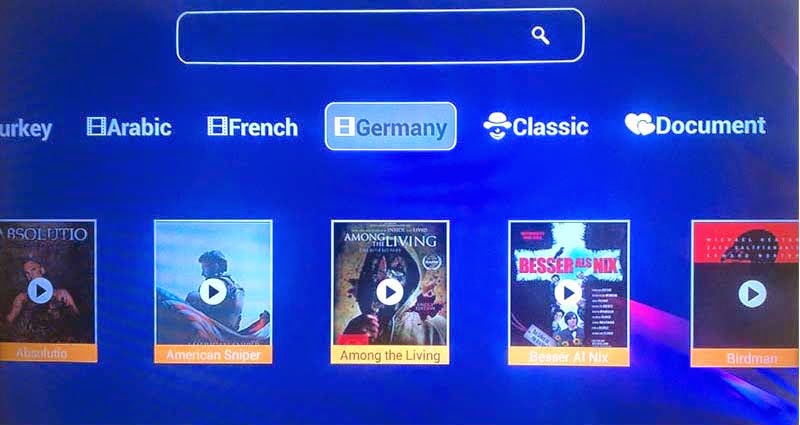
Movie(Turkey,Arabic,French, Germany, etc)


Live channels   Run more BeIn sports Channels


Full screen when watching TV channels


Thursday, April 9, 2015

CCcam format and copy account for Combox Vigica C60S and C70S

Until Now, Vigica Android & DVB-S2 tv box have been posted out for a long time, the box have get more customers chasing, but how to operate the cccam.cfg, some customer still have some doubt. 

C60S and C70S, please update the firmware to 20141205 version firstly. 
this version you can upload more account by USB, usually named CCam.cfg. 

the context list as following, please write like this (Please according your account, change the details, following just a example)
C: 11010.f3322.org 7650 50001023 27033 yes 
.... 

Then please copy the CCcam.cfg files to the USB,

Connect the box with TV and Antenna, power on the Vigica tv box, 
Go enter installation, then presss 111111, you can get the following menu.


Choose smart data


Please insert the USB to the box, press yellow buttom on remote control(Import), the account data will restore to the box.


If your box have already exited CCCam account, you also want this account in the box, please write this account to the files together, copy the files to the USB, then choose import. 

Connect with internet, the account will connect successful. 

Then you can open your scrambled channels


if you want to copy the CCcam account to other box, you can choose export, save CCcam account files to the USB. You can save the data to the PC. 

Friend, if you still have trouble for this, welcome to chat with us. 

Email: info@vigica.cc

Thanks for your times.

Thursday, April 2, 2015

Arabic IPTV Android dvb-s2 Vigica Tv box Support CCcam, Newcamd


Arabic IPTV Android dvb-s2 vigica C70S Support CCcam, Newcamd
1. CPU: AML8726-MX Up to 1.5GHz ARM Cortex Dual-core A9
2. Memory: DDRIII 1GB
3. Flash: Nand Flash 4GB
4. WiFi: 802.11 b / g / n
5. Support free Arabic IPTV channel
6. Support CCcamd, Newcamd


Arabic channel list:


Video for channels